This post is produced in partnership with Adobe. I only recommend tools I actually use, and Adobe Firefly is a genuine part of my creative workflow.
I've been a brand strategist for over 15 years. I've built hundreds of brands with my designer Kostya, and I've watched creative tools evolve in ways that change how we work. But nothing has shifted my workflow quite like learning to generate video from images using Adobe Firefly.
Not because it replaces what we do. It definitely doesn’t! But it makes us faster and more confident before a single design file gets opened.
In this guide, I'm walking you through exactly how I use Firefly AI to turn still images into video — the same process I used when building the Oliver Cameron brand, a spec leather goods brand we created from scratch as an experiment in AI-assisted creativity. Whether you're a content creator, a designer, or someone just starting to explore AI tools, this workflow is worth knowing.
What Is Adobe Firefly?
Adobe Firefly is Adobe's generative AI platform. It lets you create images, generate video, produce audio and video and audio assets, and build vector graphics, all from within one place. What sets it apart from other AI video generators is not just the quality of the output but also its seamless integration with Adobe Cloud. It's that Firefly AI is built on licensed content and Adobe's own library, which means everything you create is commercially safe to use.
That matters. A lot. Especially if you're a content creator, running campaigns, or building a brand that will eventually live in the real world.
Firefly makes it easy to get started — it's available as a standalone web app at firefly.adobe.com, and it connects with Creative Cloud tools like Photoshop and Premiere Pro. Generative credits power your generations, and depending on your Adobe plan, you'll have a set amount to work with each month. For most content creators and small teams, the free tier is a solid starting point for AI art and video creation.
Why Firefly for Image to Video Generation?
When Kostya and I started the Oliver Cameron project, we had no client, no deadline, and no product photography. Just a concept: a luxury leather goods brand built entirely with AI as a creative collaborator.
We used Firefly Boards first, dropping in reference images, writing prompts, and shaping a visual direction before we opened Illustrator. That moodboarding phase alone saved us hours. But the real shift came when we moved from images into video.
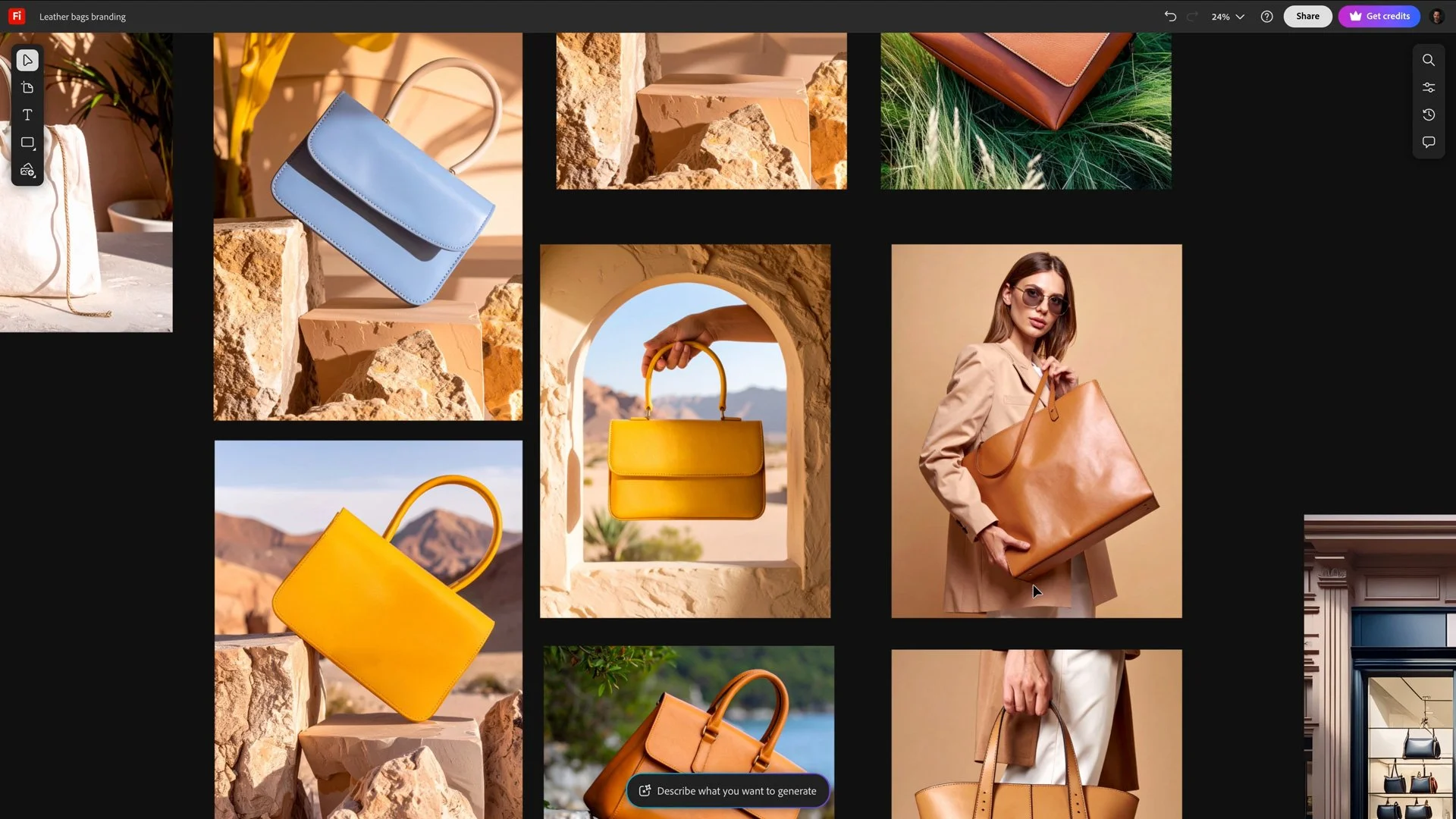
Video changed how we experienced the brand. A still image can communicate a mood. A video clip makes you feel it. And using Adobe Firefly's image to video tools, we created motion assets that looked like campaign footage, without a studio, a camera crew, or a single physical product.
Here's how the full workflow breaks down.
Explore Adobe Firefly Text to Video and Image to Video
Before you generate video, you need a clear visual direction. That's where Firefly Boards comes in.
Think of a Firefly Board as a living moodboard. You can drop in reference images, generate new ones using text prompts, and use tools like Vary, Generative Fill, and Find Similar to refine your direction. For the Oliver Cameron brand, we used prompts like:
Editorial-style photo of a luxury leather bag in an urban setting, golden hour lighting, soft shadows, neutral tones.Each generated image moved us closer to a world the brand could actually live in. By the time we were ready to create videos, we were not guessing at the aesthetic. We had established it.
If you're new to this, start here. A strong visual foundation makes your AI video results more usable and more consistent, especially when using advanced AI models.
Create AI Video from Images Online Quickly
Once you have a direction, use Firefly's Text to Image tool to create the still images you'll animate. This is where your prompting matters most.
A strong prompt includes:
Subject and composition: essential when creating new video content, so what's in the frame and how it's arranged
Lighting: soft, cinematic, golden hour, studio, natural
Texture and material: especially important for product content
Mood: the feeling you want the image to carry
For Oliver Cameron, one of our prompts read:
Structured caramel leather handbag placed on sunlit coastal rocks. Soft natural light, premium fashion cinematic aesthetic, elegant and luxurious mood.
If you're not confident in your prompting, use Firefly's built-in Enhance Prompt feature. You give it a starting point and it builds out a more detailed version for you to approve or adjust. I use this regularly, not because I can't write a prompt, but because it often surfaces ideas I hadn't considered.
Once you generate an image you're happy with, that's your starting point for video.
Try Adobe Firefly free and start creating AI video from images with a workflow built for real creative work.
How to Generate Video in Firefly: The Image to Video Workflow
This is the step most people want to get to, and it's more straightforward than you'd expect.
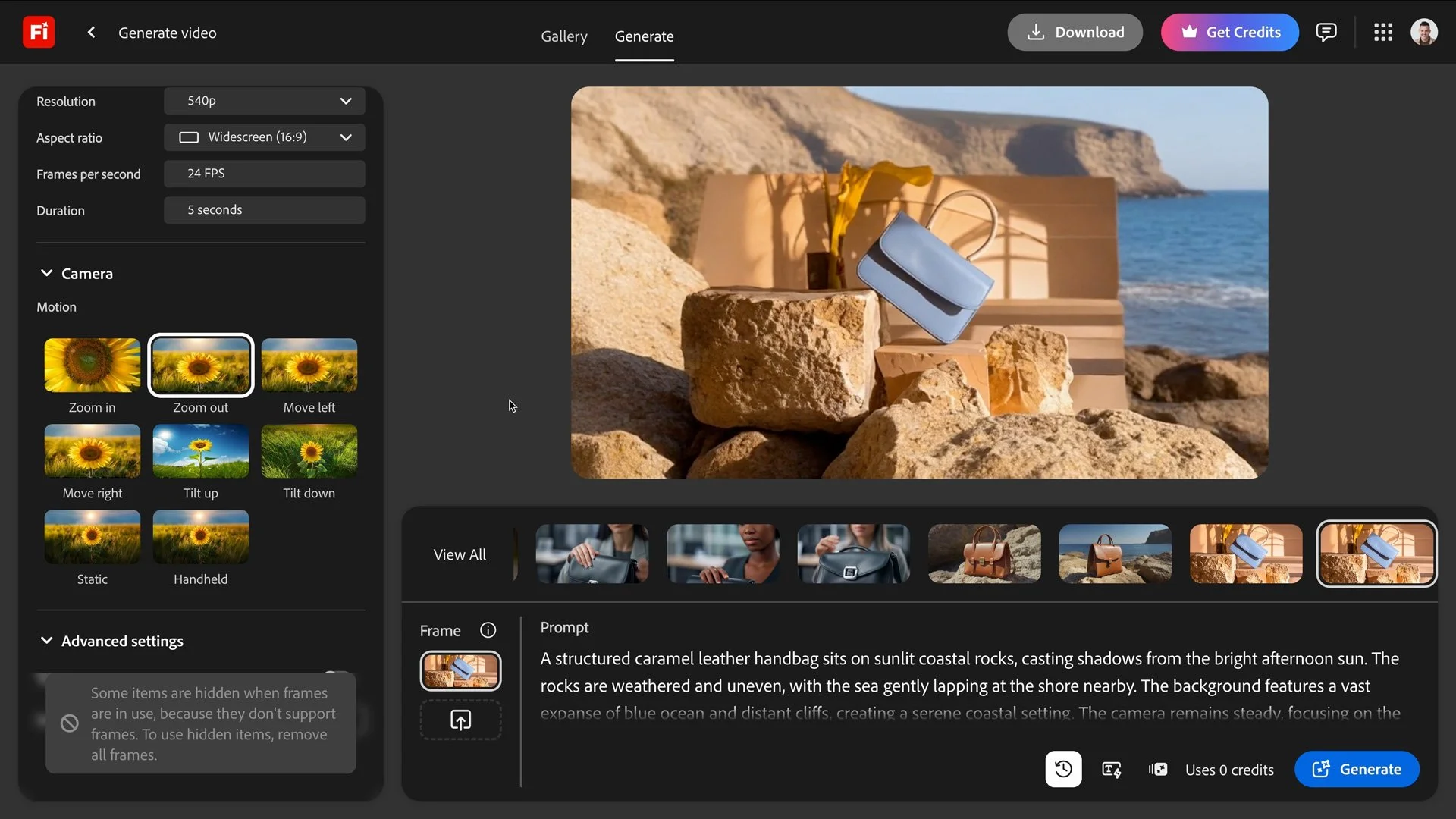
Inside Adobe Firefly, navigate to the video generation workspace. You can upload an image as a first frame, which tells the AI where to start. From there, you write a text prompt describing the motion you want to see in your animated video.
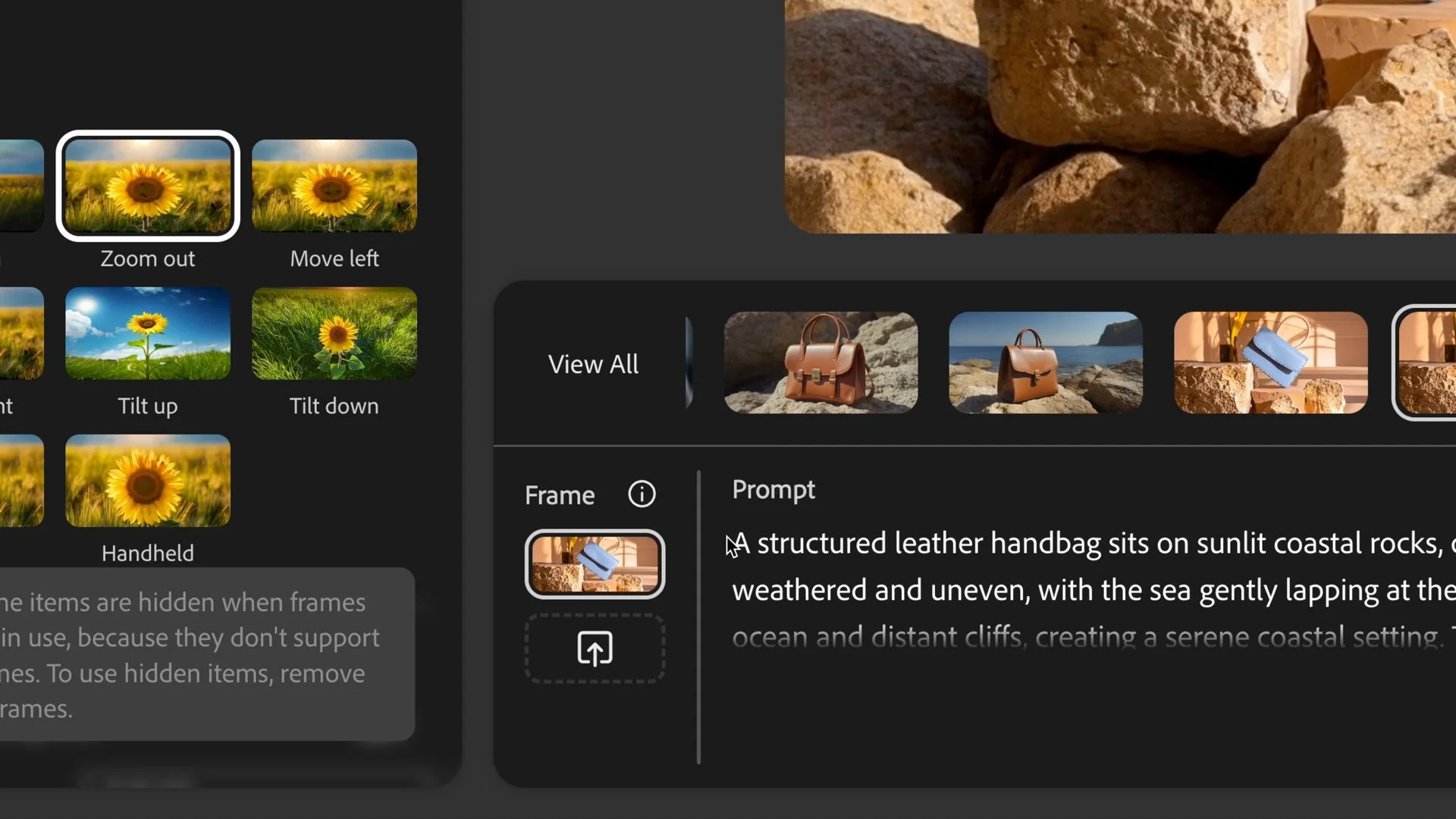
For one of our Oliver Cameron clips, I uploaded a still of a leather handbag on coastal rocks and prompted:
A structured leather handbag sits on sunlit coastal rocks, casting shadows from the bright afternoon sun. The rocks are weathered and uneven, with the sea gently lapping at the shore nearby. The background features a vast expanse of blue ocean and distant cliffs, creating a serene coastal setting. The camera remains steady, focusing on the handbag from a slight low angle, warm afternoon light highlighting the bag's smooth texture and clean lines, premium fashion aesthetic, cinematic composition, shallow depth of field.
The result was a 5-second video clip that felt like it came from an actual campaign shoot, showcasing the capabilities of the Firefly AI video generator.
The Adobe Firefly Video Model and Partner Options
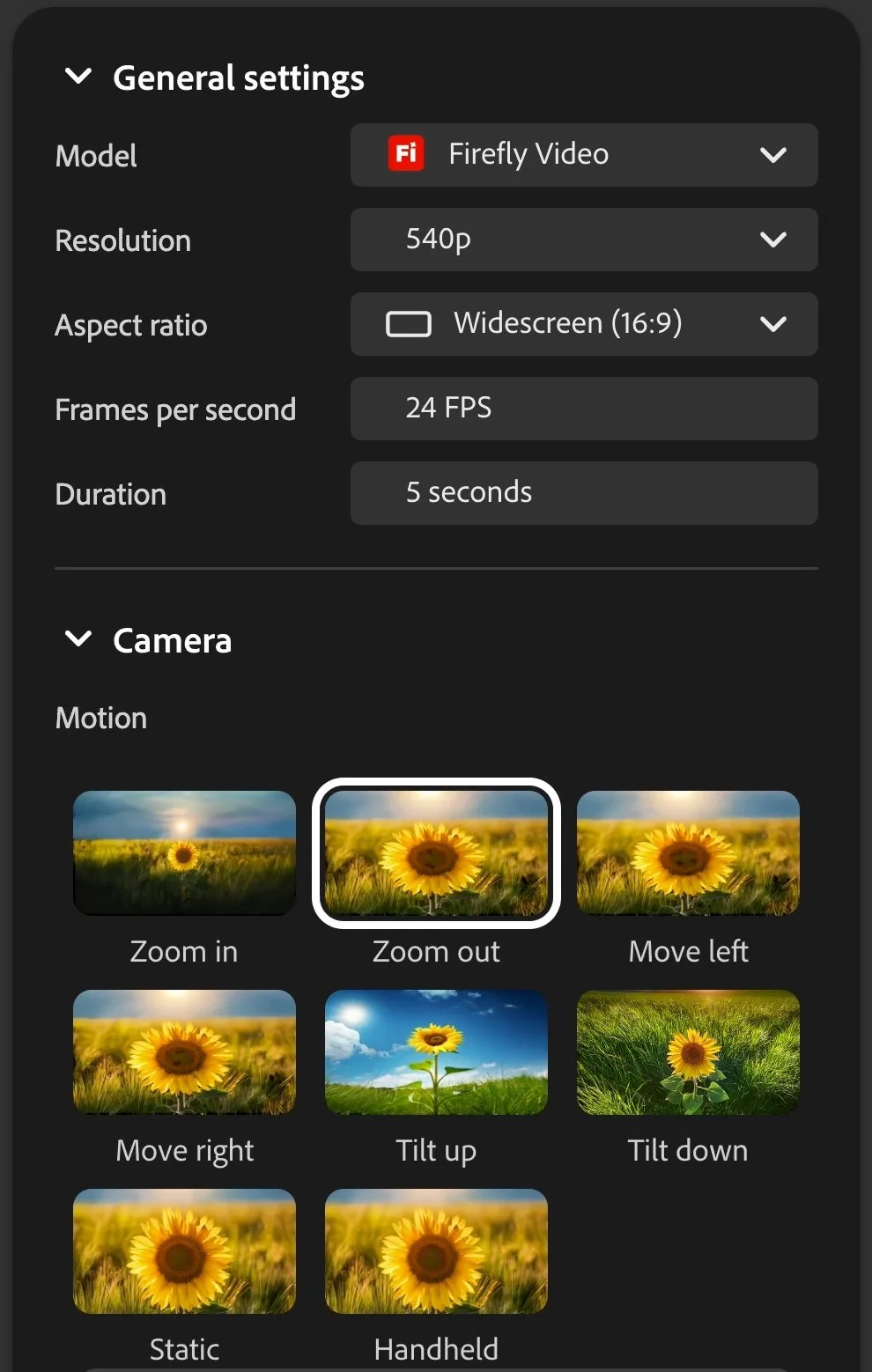
Aspect ratio: Choose based on your platform. Vertical for Reels and Shorts, horizontal for YouTube and web.
Camera motion: Firefly gives you motion presets like zoom in, tilt up, and handheld. You can also upload a motion reference video to guide the AI on the camera movement style you're after.
Video model: Firefly gives you access to its own Firefly Video model, which is commercially safe and great for product and brand content. You can also try partner models like Runway Gen-4 or Luma AI for different aesthetics. I usually start with the Firefly video model because the output is cleared for commercial use and can easily be transformed into a new video.
First frame and last frame: These are crucial for any 1080p video project. Uploading a reference image as the first frame keeps the AI anchored to your visual. You can also upload a last frame to guide how the clip ends, which is useful when you're building a sequence.
Step 4: Build a Sequence
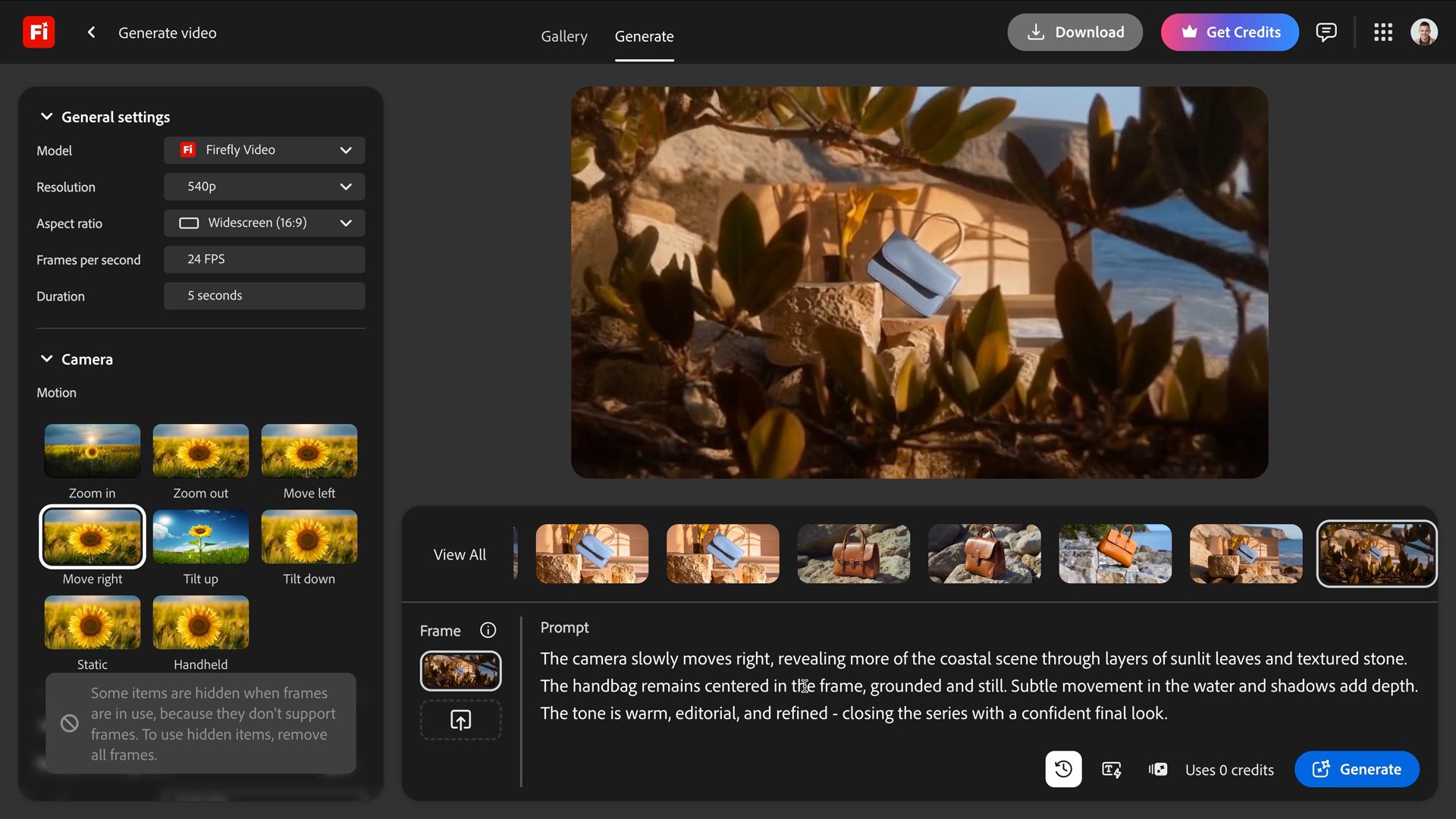
A single AI generated video clip runs up to 5 seconds, but with Firefly, you can create longer animated videos. That feels limiting at first. But once you understand how to set the first and final frame inside Firefly, you can generate videos that extend well beyond 5 seconds and feel continuous. This is one of the things that genuinely expanded my understanding of what's possible with this tool.
Here's the technique: take the final frame of your first generated video clip and upload it as the first frame of your next generation. Update your text prompt to continue the motion or shift the scene slightly. Repeat for as many clips as you need.
For a 15-second product ad, we built three clips this way. Each one picked up where the last left off, creating visual continuity across the whole sequence without a camera or a single real-world asset.
To grab a last frame cleanly, open your video clip in Photoshop, scrub to the end, and export it as a still image. Bring that reference image back into Firefly as your new first frame. It becomes second nature quickly, and the results are worth it.
Step 5: Edit and Assemble in the Firefly Video Editor
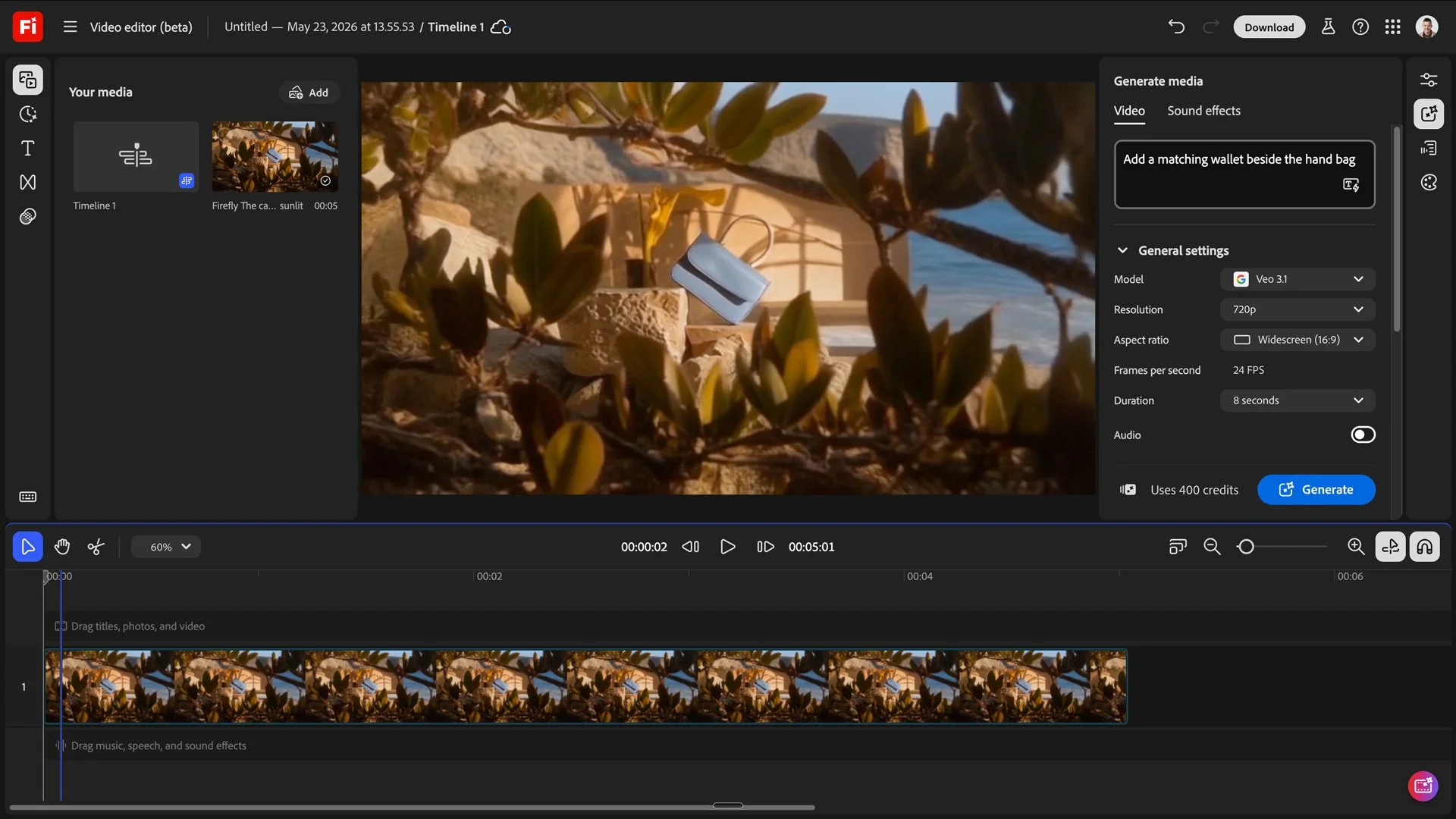
Once you have your clips, bring them into Firefly's native Video Editor to assemble the final video. This is where the sequence becomes a campaign asset, and the best part is you never have to leave Firefly to do it.
Inside the Video Editor, you can arrange your clips on a timeline, add titles and animated text, drop in a logo or brand mark, add background music, and adjust pacing and timing. Everything stays in one place.
For Oliver Cameron, this is where three Firefly-generated clips became a cohesive 15-second ad. We added the logo, a campaign headline, and a music track. The result looked polished and on-brand, something we could put in front of a client.
If you're creating for multiple platforms, the Video Editor also makes it straightforward to create platform variations. Your horizontal YouTube version and your vertical Reels version can come from the same project with minimal extra effort. For anyone who has spent time bouncing between Firefly and other editing tools, having this built directly into the platform is a real time saver.
The Best AI Image to Video Generator for Creative Workflows
There are plenty of video generators out there. I've tried several. Here's why I keep coming back to Adobe Firefly for brand and client work.
It's commercially safe. Firefly is trained on licensed content and Adobe Stock, which means you can use AI generated video in real campaigns without legal risk. Other AI tools are not always clear on this. Firefly is.
Content Credentials. Every image and video clip generated in Firefly includes Content Credentials, a built-in record of how the asset was made. You can verify this at verify.contentauthenticity.org. For client work, this level of transparency matters.
It connects to Creative Cloud. Firefly connects with Photoshop, Premiere Pro, and Adobe Express, so your AI workflow fits into the tools you already use.
Partner model access. Within Firefly, you can switch between Adobe's own video model and partner models depending on what your project needs. That flexibility means you're not locked into one output style.
It's built for practical creative work. A lot of AI tools optimize for spectacular results. Dragons, sci-fi landscapes, surreal imagery. Firefly is designed around real creative work: product content, brand campaigns, social assets. That's what I need, and it's what Firefly consistently delivers.
The Biggest Mistake People Make with AI Video
I see this constantly, and honestly, I fell into it myself at first. People approach AI video generation as a novelty. They generate dragons and fantasy landscapes because the technology makes it possible, and it's fun to explore. But that creative freedom can also become a dead end, especially for anyone building a brand or creating content for a business.
The bigger opportunity is giving yourself permission to think about AI video in a brand context. How could this help you visualize a product before a shoot? How could this help a client understand the feeling of a campaign before a single dollar is spent on production? How could this save your team a week of back-and-forth over creative direction?
Those are the questions worth asking. The workflow I've described in this post is designed around exactly that kind of practical, brand-first thinking.
Discover Even More AI Features in Adobe Firefly
The image to video workflow is one of the most useful things Firefly does, but it's far from the only one. Here are a few other AI features worth exploring as you get more comfortable with the platform.
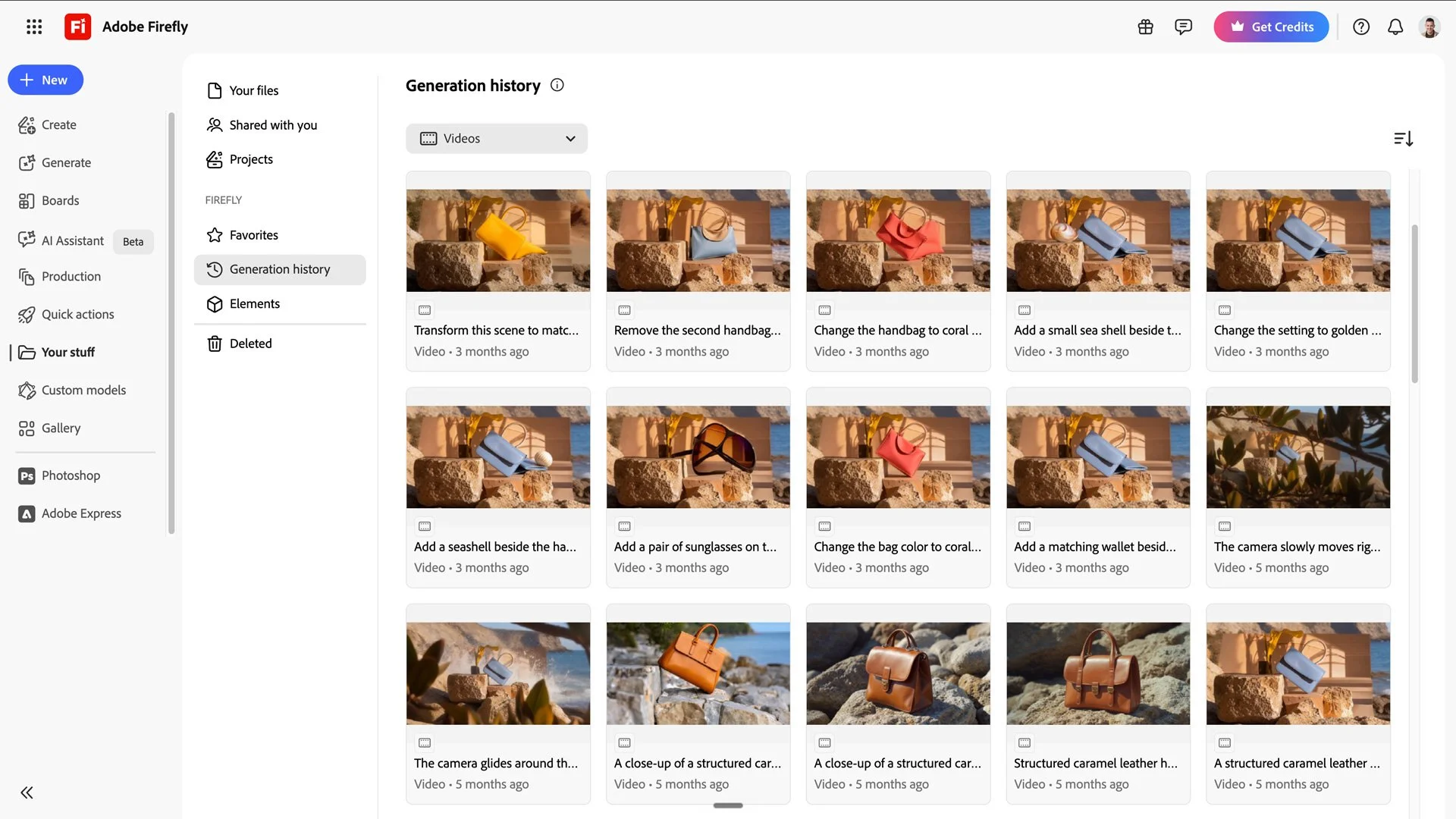
Video Prompt to Edit
lets you modify an existing video using a text prompt. Want to remove an object from a scene, change a color, or add an element? Type it in and generate. It works on Firefly-generated videos and on your own footage uploaded via Firefly Boards, with a 32MB file size limit that makes it best suited for social and web content.
Generative Fill and Generative Expand
These features in Photoshop are powered by Firefly's AI and let you extend or modify images with text prompts, which feeds directly into the image to video workflow described above.
Firefly for Adobe Express
Lets you generate images and apply AI-generated effects directly within Express, keeping your design and video creation in one connected workflow.
The platform is expanding quickly. New models and video features are added regularly, so it's worth checking back at firefly.adobe.com to see what's new.
Should Brands Use AI-Generated Video? A Honest Take.
This question comes up every time I talk about AI video with clients, and I think it deserves a direct answer.
Some brands should not use AI-generated video at face value. The skepticism is warranted. For brands where authenticity is the core promise, replacing real photography with AI-generated visuals risks breaking the trust that took years to build. Dove's response to AI-generated beauty standards is a good example of a brand that understood this clearly. Rather than using AI to simulate their product in an idealized way, Dove launched "The Dove Code," a campaign that actually highlighted the unrealistic standards AI-generated imagery can create, pledging never to use AI to alter women's images. That was a smart, brand-consistent call.
On the other end of the spectrum, some brands have leaned into the aesthetic of AI generation in ways that feel intentional and honest. Toys R Us produced a short brand film using OpenAI's Sora, telling the origin story of the company's founder entirely through AI-generated visuals. The film premiered at Cannes Lions and was widely noted as a milestone in synthetic storytelling. It worked because it was framed as a creative choice, not passed off as real footage.
The campaigns that have struggled are the ones where AI was used to simulate something real and familiar, and viewers felt deceived. Coca-Cola's 2024 AI-generated Christmas ad was widely criticized as cold and uncanny, with a New York Post report describing it as a "creepy dystopian nightmare." The issue was not the technology. It was the expectation. Viewers had a deep emotional relationship with that ad, and when the familiar warmth felt hollow, they noticed.
AI video works when it is used honestly, and when the output serves the brand's actual character. If your brand is built on human warmth and real stories, AI-generated video is probably not your lead campaign asset. But if you're in the ideation phase, presenting a concept, visualizing a product that doesn't yet exist, or creating motion content for a digital campaign, AI video is a powerful tool used with creative control and good judgment.
A Note on Prompting for Video
The quality of your AI video is largely determined by the quality of your text prompt. Here's what I've learned from using Firefly across multiple projects.
Be specific about motion. Don't just say "moving camera." Say "slow zoom toward the product" or "camera pans left across the surface." Vague motion prompts produce vague results.
Reference the feeling, not just the subject. "Luxury fashion aesthetic, warm and intimate lighting" gives the AI more to work with than just "handbag on a table."
Use Enhance Prompt when you're stuck. I've gotten some of my best results from prompts I started with three words and let Firefly expand.
Iterate. Your first generation probably will not be your last. Try a variation, grab the best frame, and use it to guide the next generation. The workflow is iterative by design, and that's a feature, not a limitation.
How I Use This Workflow with Clients
Before we found this approach, client presentations meant showing static mockups and hoping they could visualize the brand in motion. Now we show them.
We use Firefly to generate video clips during the ideation phase, before photography is booked, before a product exists, sometimes before a logo is finalized. It gives clients something to react to early, which means fewer surprises later and fewer revision rounds overall.
It also helps us arrive at photo and video shoots with more clarity. When you've already seen fifteen AI generated versions of how a handbag could look on a coastal rock, you know exactly what you're going for when the camera comes out.
That's the real value here. Not replacing the shoot. Arriving at it with direction.
Try It Yourself
If you've been curious about AI video but haven't found a workflow that feels practical, this is the one I'd recommend starting with. Adobe Firefly makes it easy to go from a text prompt to a finished video clip, and the image to video approach gives you creative control that pure text to video sometimes lacks.
You can try Adobe Firefly at firefly.adobe.com.
Have questions about the workflow? Drop them in the comments to help us translate video ideas into reality. I read everything.
This post is produced in partnership with Adobe. I only recommend tools I actually use, and Adobe Firefly is a part of my creative workflow.