Learn Acrobat: What Is a PDF Space? How to Create an AI Workspace in Adobe Acrobat
This post contains affiliate links, meaning if you click through and make a purchase, I may earn a small commission at no extra cost to you. I only recommend products I personally use and believe bring value to my audience.
A PDF Space is an AI-powered workspace inside Adobe Acrobat that brings your files, links, and notes into one place, so you can read across all of them at once, ask questions with AI Assistant, and share the result as a guided experience. You can load up to 100 documents into a single space and get answers with citations back to the exact source.
I test a lot of tools, and most don't earn a place in how I work. PDF Space is one of the few that did, and I reach for it almost every day. This is a walkthrough of what a PDF Space is, how to create one, and how I use it for real work, from planning the busiest week of my year to prepping client projects. I'll show you three videos along the way so you can watch the workflow rather than just read about it.
Understanding PDF Spaces in Adobe Acrobat
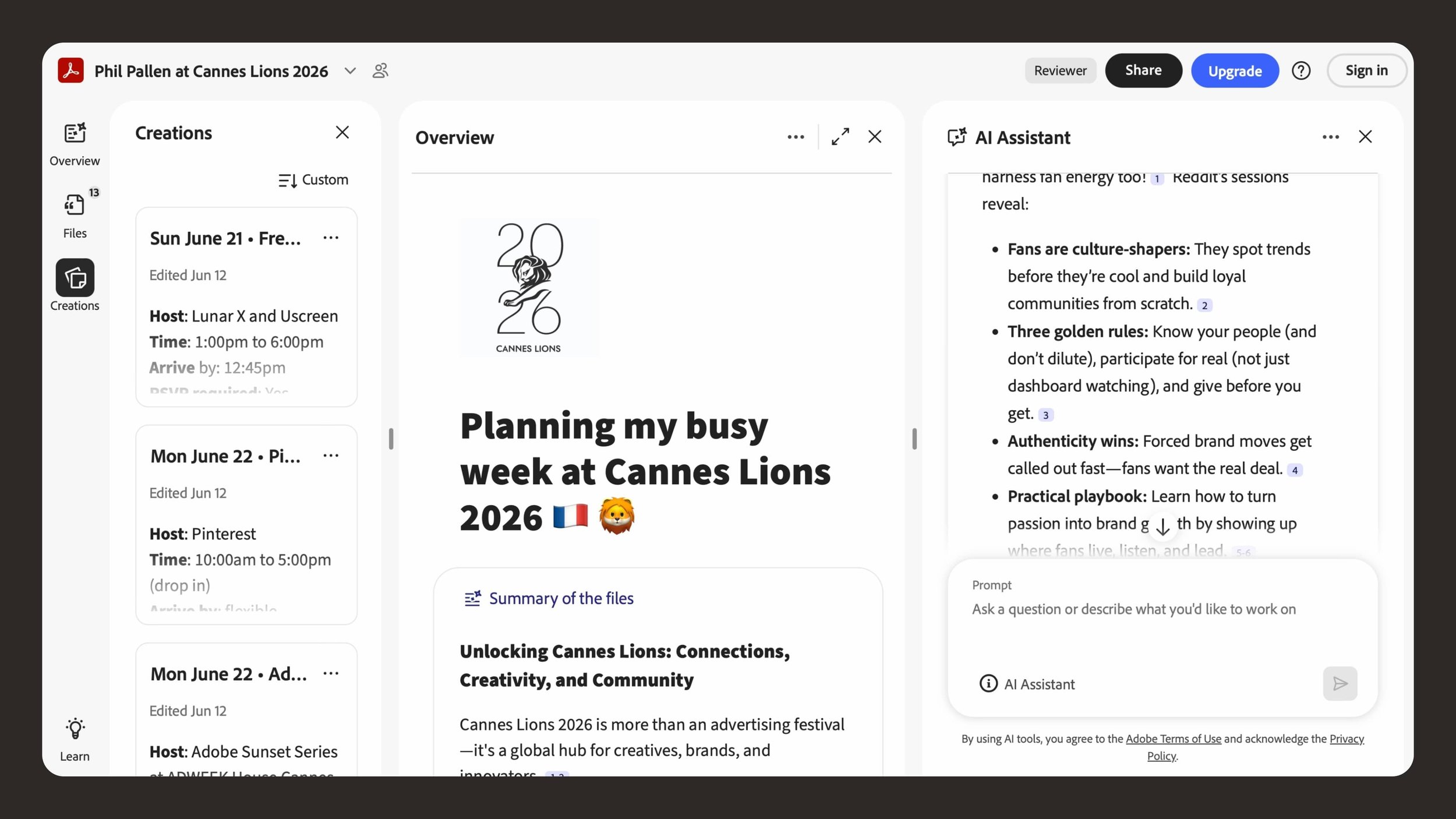
The Adobe Acrobat PDF Space Overview page for a Cannes Lions trip, showing the custom title, logo, and the Files, Creations, and AI Assistant panels in one workspace.
What is a PDF Space?
A PDF Space is an AI workspace inside Adobe Acrobat. You drop in your files, links, and notes, and it becomes one place where you can read across everything at once, ask questions, and share the result with other people and their recipients.
The way I describe it: most tools store your documents. A PDF Space reads them. You can load up to 100 files into a single space, point AI Assistant at all of them together, and get answers with citations back to the exact source. That last part matters more than it sounds, and I'll come back to it.
Here's the video where I put this to the test on a real deadline. I planned my entire first Cannes Lions, fifteen-plus events in five days, inside one PDF Space.
Benefits of Using PDF Spaces
The benefit I felt first was relief. A week like Cannes comes at you as a mess of invitations in email, confirmations as PDFs, QR codes for the door, and addresses spread across town. I dropped all of it into one PDF Space and stopped digging through my inbox every time I needed to remember where I was supposed to be.
The second benefit is trust. When you ask a question, every answer carries a citation. I'm not taking a summary on faith or worrying about AI making something up. I click the citation, and it jumps straight to the file it pulled from.
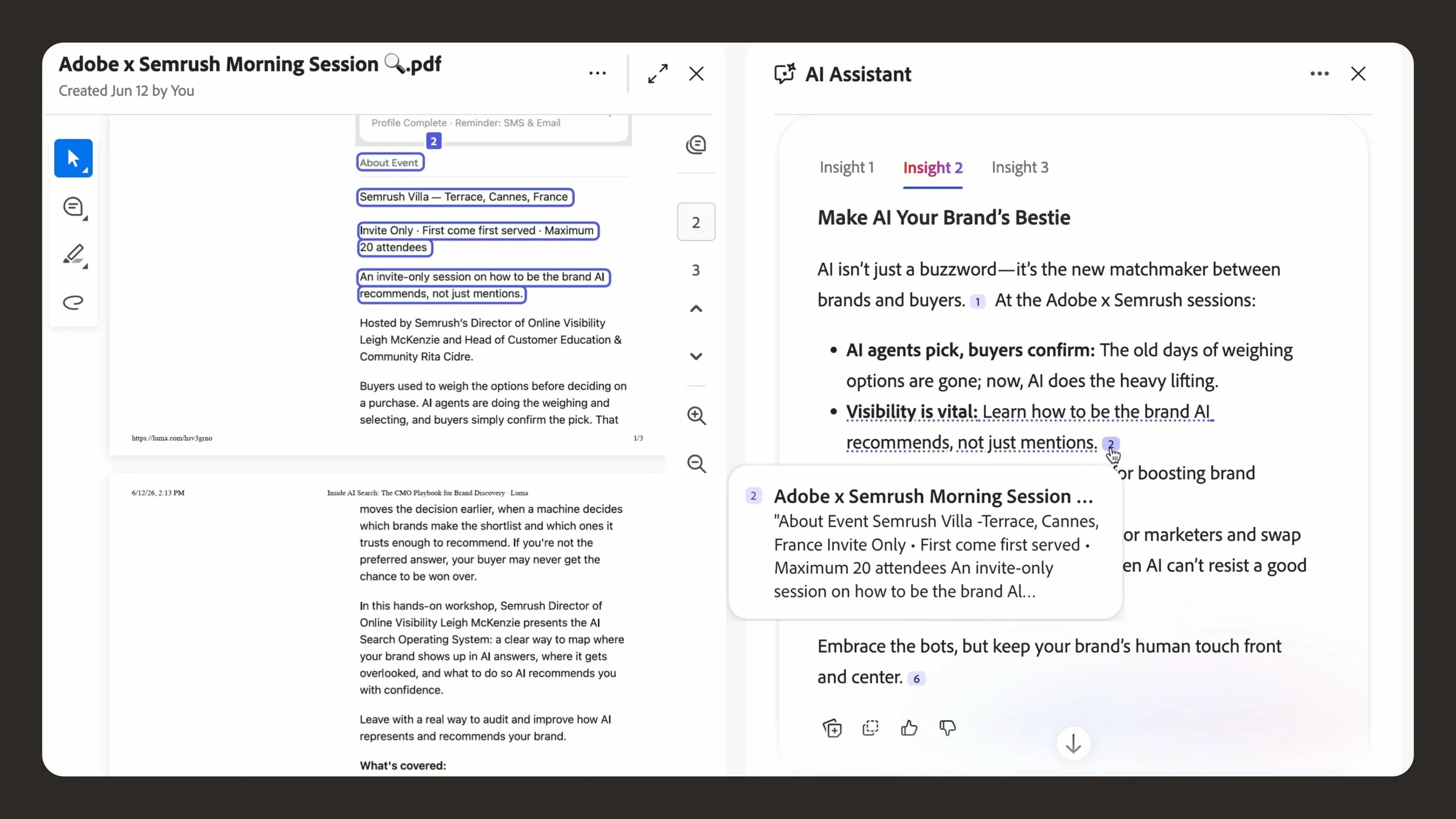
A close-up of a citation inside Adobe Acrobat AI Assistant, showing how clicking a cited point jumps straight to the source document.
The third is sharing. A PDF Space isn't just yours. You can share it as a guided experience that other people open, read, and explore, without needing an account to share your PDF.
How PDF Spaces Enhance Productivity
The productivity gain is simple: you stop switching. Before, prepping for a project meant opening ten files, copying bits into a doc, and losing the thread halfway through. Acrobat AI changed that. Now the files sit in one workspace and AI Assistant does the reading across them.
I used this AI-powered workspace recently to prep talking points across thirty pages of client proposals, without jumping between apps. PDF Spaces helps streamline that kind of work and keeps collaborators on the same page. The whole point is to get information out of scattered places and into one space that Acrobat can read across, so when you ask a question, it has the full picture to pull from.
Creating Your PDF Spaces
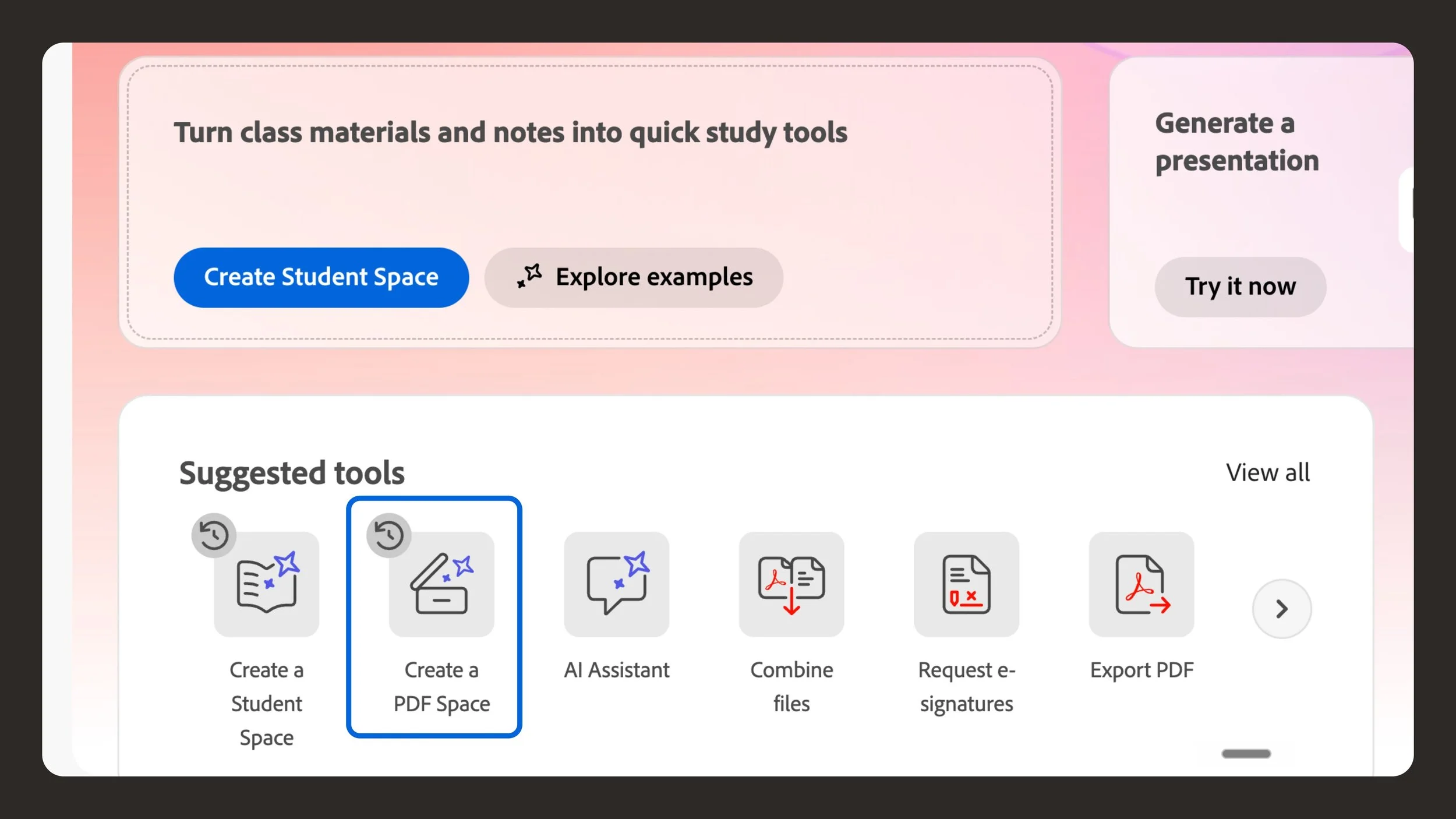
Creating a new PDF Space is easy from the Adobe Acrobat home page.
Step-by-Step Guide to Create PDF Spaces
To create PDF Spaces, open Adobe Acrobat, select PDF Spaces from the left panel, and choose Create a PDF Space. Then add your material: upload up to 100 documents from your device, pull from Adobe cloud storage, paste text files, or drop in a web link. Acrobat will generate an overview automatically.
Here's the part most people get wrong. They think they have to organize everything first, rename files, build folders, make it tidy before the tool is useful. You don't. When I built my Cannes space, I saved confirmations and forwarded emails straight to PDF and dragged them in exactly as they arrived. No cleanup. The space doesn't need a tidy library. It needs your stuff in one place.
Customizing Your Workspace in Adobe Acrobat
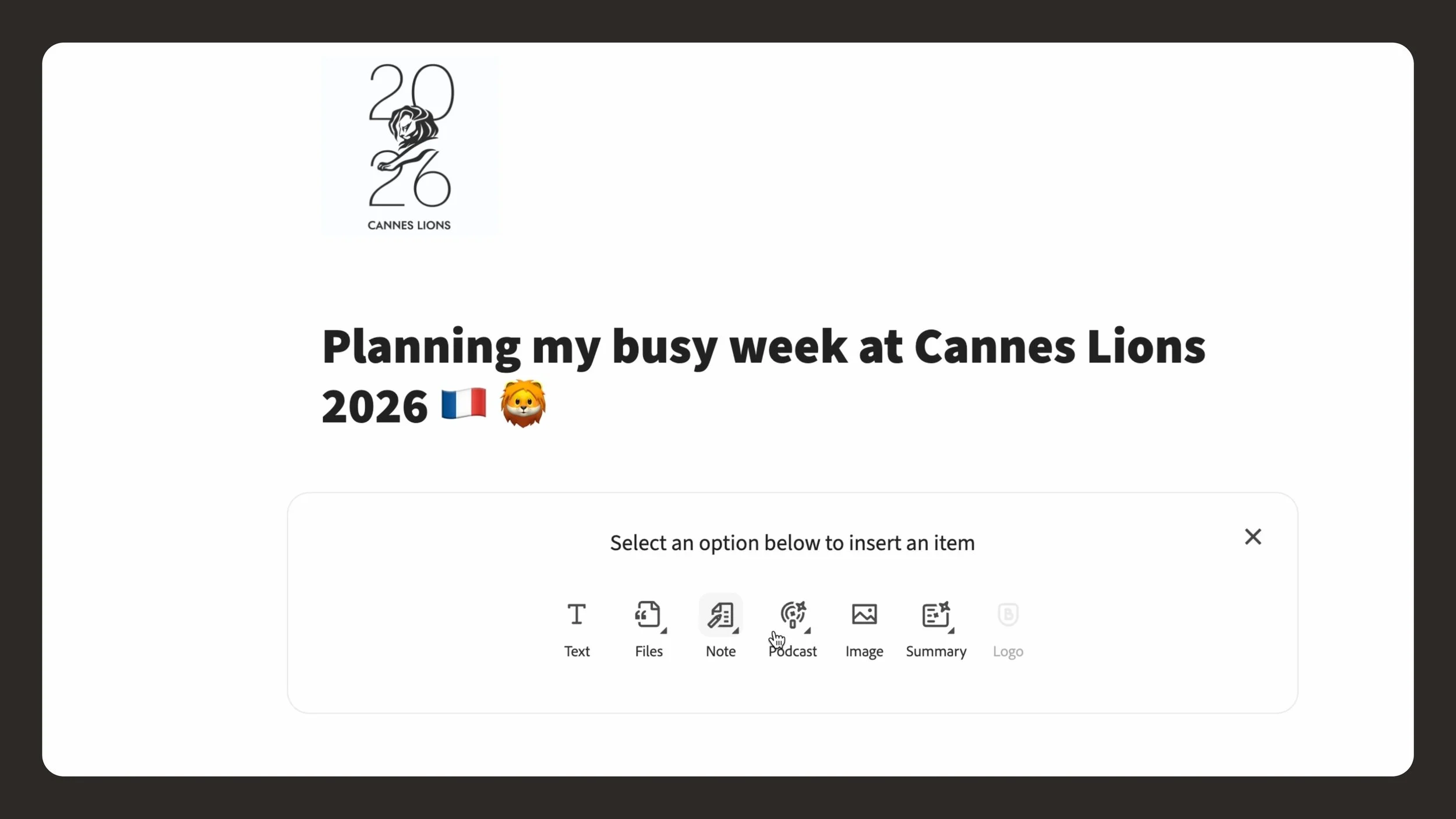
A PDF Space can be customized to show a brand logo, added to the top, along with a color scheme and link preview that you can choose.
Once your files are in, the Overview page is where you make the workspace in Acrobat your own. I dropped the Cannes Lions logo at the top, set a color scheme, and customized the link preview so it looks intentional when I share it.
You build the Overview with an insert menu: text, files, a note, a podcast, an image, a summary, even a logo. I wrote my intro in plain language so anyone who opens the space knows what it is and how to move around it in about five seconds. A good Overview helps recipients know where to start and conveys your message clearly. The finished Overview becomes the landing page people see first when I share the link.
Tips for Effective PDF Space Management
A few things I've learned. Keep one PDF Space per project, question, or trip, rather than turning it into a dumping ground for loosely related files. Use notes for the small details you'll need fast, and set them to custom ordering so you can drag them into the right sequence. And lean on the summary and key insights actions early, since seeing everything condensed into one view is usually the moment a pile of files starts to feel like a plan.
This next video shows how I use the same workspace thinking to run an ongoing content operation, not just a one-off event.
Collaborating in Shared PDF Spaces
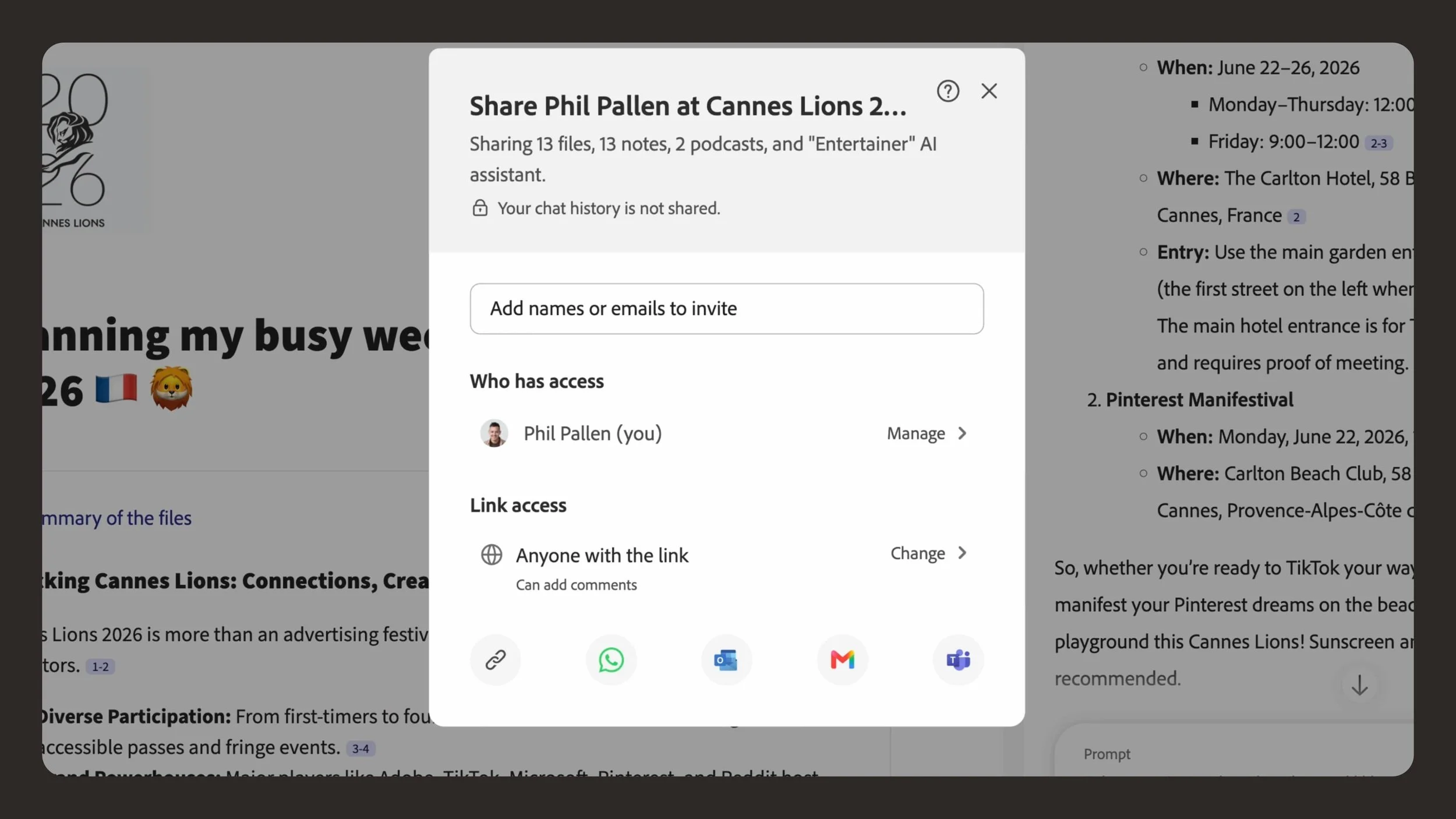
This is how you invite others to open and explore a shared PDF Space. An account is not necessary for someone to view your PDF Space.
Inviting Team Members to Your PDF Space
To share, open your PDF Space and select Share. You choose the access level: invited people only, anyone in your organization, or anyone with the link. Then you set what they can do, from viewing to adding comments.
When I planned Cannes, I shared my space with my friend Lucy, who's been many times. She opened my schedule, told me what to adjust and what to skip, and I refined my whole week off the back of her feedback before I left home. She didn't have to log in or create an account to do it.
Best Practices for Collaboration in Adobe Acrobat
Match the permission to the situation. Your sharing settings control permission levels, from view-only to comment. If I want feedback, I enable comments. If I want people to read and explore but not change anything, I keep it to viewing. For anything sensitive, I avoid public links entirely, and it's worth checking Adobe's privacy policy if you handle client data.
One detail worth knowing: Adobe doesn't use your content to train its AI models. That's the reason I'm comfortable keeping confirmation numbers, addresses, and client information inside shared PDF Spaces. I don't have to think twice about it.
Using AI-Powered Tools for Enhanced Collaboration
Sharing a PDF Space means sharing the intelligence inside it, not just the files. Whoever opens it can read the summary, listen to the audio overview, and ask AI Assistant their own questions, with the same citations I get.
I've shared a space with a speaker to review a presentation we were co-hosting, and shared project briefs and reports the same way. The other person doesn't get a static folder. They get a workspace they can actually interrogate. This works just as well for freelancers and small business owners as it does for big teams.
Interactive Experience in Your AI Workspace

Adobe Acrobat AI Assistant answering a specific question about events at a hotel, pulling the day and time from an uploaded confirmation. Each answer includes a citation that links back to the exact source file.
Integrating AI Features in Adobe Acrobat
The moment that sold me on PDF Spaces happened during Cannes prep. A friend texted asking whether I'd be at a specific hotel during the week. I'd never been, so I had no idea. Instead of digging through my inbox, I asked AI Assistant a specific question: am I attending any events at the Carlton, and if so, when and where?
It answered in seconds, pulling from a confirmation I'd forgotten I'd even saved, with the event, the day, and the time. The space remembered what I couldn't. I didn't organize anything special to make that work.
You can use a prebuilt AI Assistant, like Analyst, or build a personalized AI Assistant. Either way, use AI Assistant to explore insights, generate insights across your files, and get answers with citations.
Creating an Interactive Knowledge Hub
A PDF Space becomes a knowledge hub when the content stops being separate files and starts answering questions as a whole. The audio feature is a good example. Acrobat can generate audio overviews of the entire space, with contextual summaries pulled from everything you loaded in. It gives me two lengths: a roughly three-minute Highlights pass and an eight-minute Deep Dive. Mine pulled from my RSVPs and from a Creative Boom article I'd saved. I don't love to read, so having the whole week as audio I could play on the move was the entire point.
Tailoring Your PDF Space to Meet User Needs
The same workspace adapts to whatever you're doing. For Cannes it held a travel schedule. For client work it holds proposals and briefs. You can build a custom AI Assistant tuned to a recurring need, give it a role and a tone, and it shapes its answers to match. I built a marketing strategist assistant for launch projects that helps generate taglines and copy ideas right inside Acrobat.
This third video is my first full look at Acrobat Studio, the wider workspace that PDF Spaces lives inside, if you want to see how the pieces fit together.
If you already use a cloud drive or an AI chat tool, here's where a PDF Space fits and where it doesn't.
PDF Spaces vs Other Cloud and AI Tools
PDF Spaces vs cloud storage (Google Drive, Dropbox, OneDrive). Cloud storage holds your files. It doesn't read them. You still open each document and find what you need yourself. A PDF Space reads across everything you've loaded in and answers questions about it, with citations back to the source. Storage is where files live. A PDF Space is where they get used.
PDF Spaces vs general AI chat tools (ChatGPT, Claude, Gemini). A general AI chat tool is powerful, but you paste content into it and the context resets between sessions. A PDF Space keeps your actual files in one persistent workspace, answers from those specific documents, and shows you exactly which file each answer came from. For document-heavy work where you need to trust the source, that citation layer is the difference.
PDF Spaces vs NotebookLM. The closest comparison. Both bring documents into one AI workspace and generate audio overviews. The practical difference for me is that a PDF Space lives inside Adobe Acrobat alongside the PDF tools I already use, shares as a customized, guided experience with a branded Overview page, and keeps everything in the environment where my documents already are.
When a PDF Space is the right choice. Reach for one when you have several related files, you need answers you can trust and verify, and you want to share the result with someone else. For a single quick question or one short document, a regular AI chat or the standard Acrobat AI Assistant is faster.
Addressing Common Questions About PDF Spaces
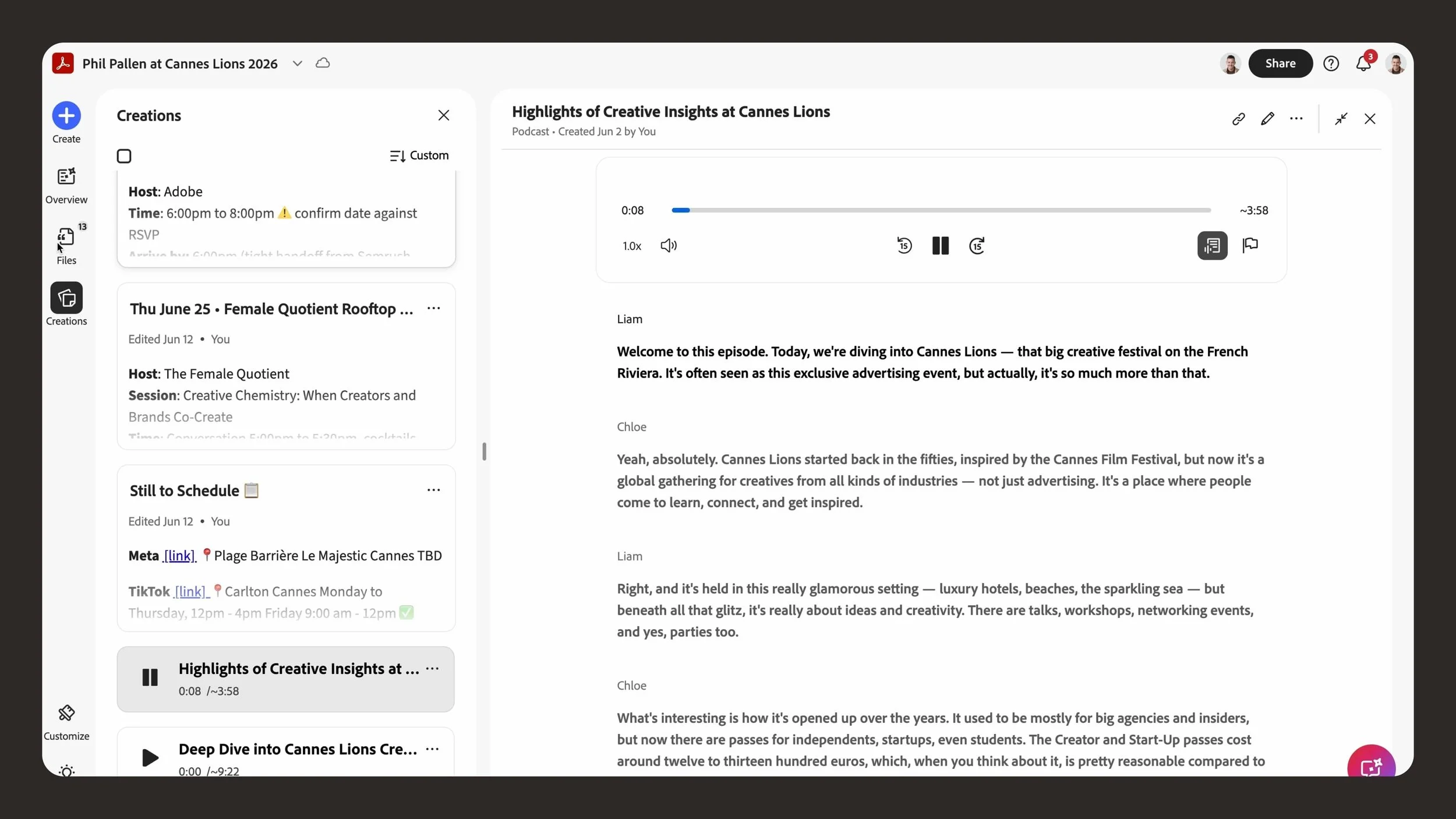
The Audio Overview feature in a PDF Space, showing the Highlights and Deep Dive versions generated from every file in the workspace.
Frequently Asked Questions
What is a PDF Space in Adobe Acrobat?
It's an AI workspace where you bring files, links, and notes into one place, then read across all of them, ask questions, and share the result. Most tools store your documents. A PDF Space reads them.
How many files can a PDF Space hold?
Up to 100 in a single space. That covers a packed event week or a full client project without splitting things across folders.
Are there any usage limits for PDF Spaces?
Yes, and they're worth knowing before you load a space up. Each PDF Space holds up to 100 files. Each file can be up to 100MB and up to 600 pages. You can add PDFs, Office files, text, pasted content, and public web links, while password-protected files, videos, and handwritten notes aren't supported. Beyond the per-space limits, your overall Adobe cloud storage and the AI features available depend on your plan, so check Adobe's Acrobat pricing page for current details.
What file types can I add?
PDFs, Word documents, PowerPoint files, Excel spreadsheets, text files, pasted text, and public web links. A few things aren't supported, including password-protected files, videos, and handwritten notes, so keep those out of the space.
Do the people I share with need an Acrobat account?
No. They can open the link, read the space, listen to the audio overview, and explore your notes without signing in. They only need an account if they want to save it for later or build their own.
Can I trust the AI answers, or will it make things up?
You can check every answer. AI Assistant attaches a citation to its responses, and clicking it jumps straight to the source file. That citation layer is the reason I use this for real work instead of taking a summary on faith.
Can PDF Spaces turn my documents into audio?
Yes. Adobe Acrobat can generate an audio overview of your entire PDF Space, not just one file, in two lengths: a roughly three-minute Highlights version for a fast pass, and an eight-minute Deep Dive when you want more detail. It pulls from everything you've loaded in, so you can listen to a summary of your whole project or trip on the go instead of reading through every file.
Do I need to organize or rename my files first?
No, and I'd skip it. When I built my Cannes space, I saved confirmations and forwarded emails straight to PDF and dragged them in exactly as they arrived. The space doesn't need a tidy library. It needs your material in one place so it can read across it.
Is my content private? Does Adobe train its AI on my files?
Adobe doesn't use your content to train its AI models. That's why I'm comfortable keeping sensitive details in a space, like confirmation numbers, addresses, and client information. For anything truly sensitive, I still avoid public share links and keep access to invited people only.
What's the difference between a PDF Space and AI Assistant?
A PDF Space is the workspace that holds everything. AI Assistant is the part you talk to inside it. You ask AI Assistant a question, and it answers using the files in your space.
Can I use PDF Spaces on mobile?
Yes. You can build and prepare a space on desktop, then access it from your phone, which is what made it useful to me on the move rather than only at my desk.
What can I actually use a PDF Space for?
Anything document-heavy. I've used one to plan a travel schedule, prep talking points across thirty pages of client proposals, compare decks, and share project briefs. If your work involves reading, planning, or sharing across a lot of files, it fits.
How much does PDF Spaces cost?
It's included with select Acrobat plans that have access to the AI features. Check Adobe's Acrobat pricing page for the current details, since plans and availability change.
How do I get started?
Open Adobe Acrobat, select PDF Spaces from the left panel, choose Create a PDF Space, and add your files. Or open my live example at philp.al/cannes first to see a finished one before you build your own.
Getting Tailored Support for Adobe Acrobat
If you want to go deeper, the Learn Acrobat and Adobe Learn resources cover setup, permissions, and the AI features step by step, with short video tutorials. They're the right place for the official how to use PDF Spaces detail on specific settings.
Resources for Further Learning
The best way to understand a PDF Space is to open one. My live Cannes Lions space is public at philp.al/cannes, so you can look around a real, finished example, ask it questions, and see how the Overview, files, notes, and AI Assistant work together. Then try building your own for whatever your next busy week looks like, a conference, a trip, or a client project.